
You can create an email account on your own domain (e.g. kontakt@twojafirma.pl) yourself in Plesk, without waiting for our support team.
How to add an email account
- Log in to the Plesk panel.
- Go to the Mail section.
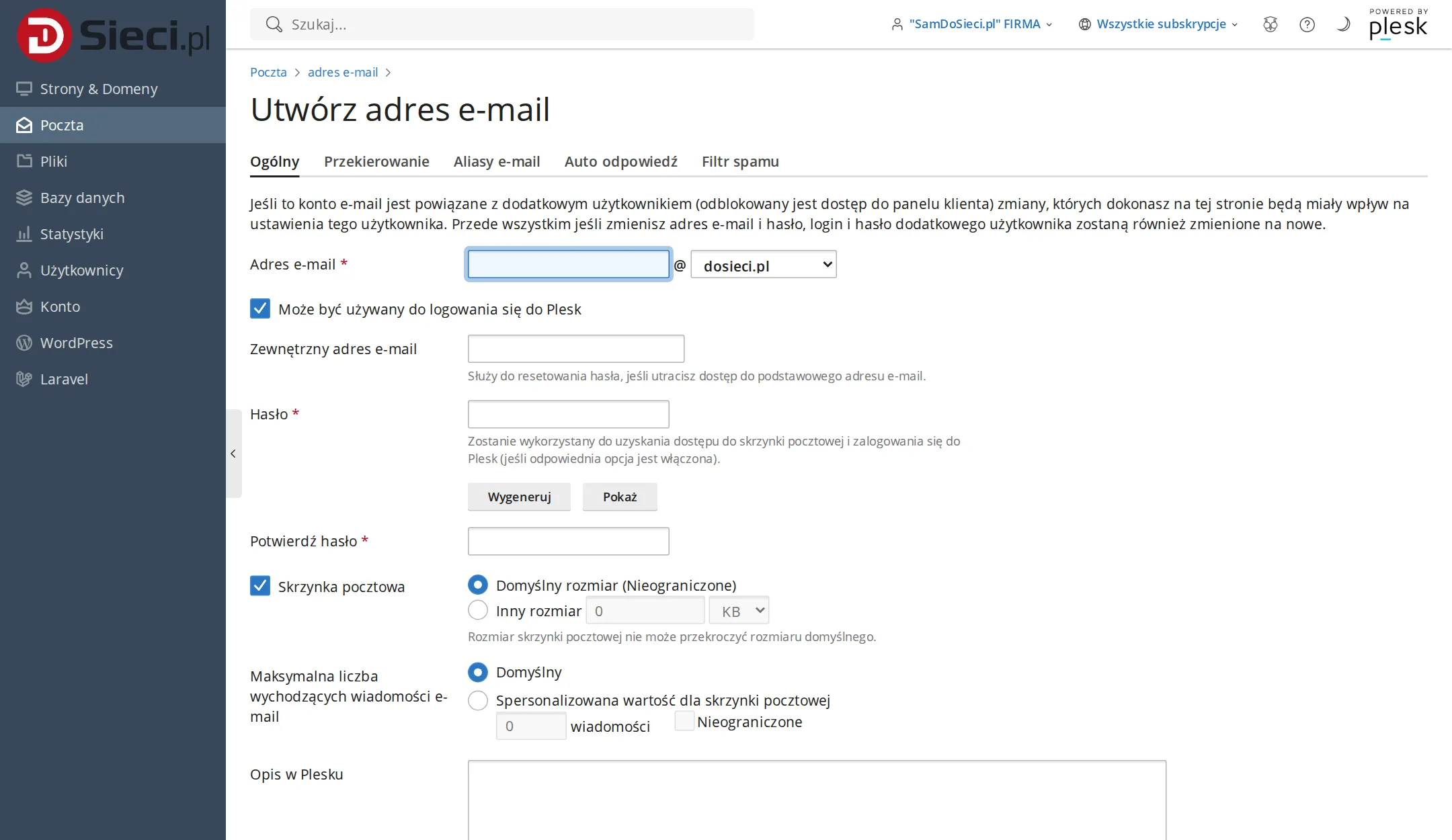
- Click Create Email Address.
- Enter the mailbox name (the part before
@) and set a password. - Optionally set a mailbox size limit.
- Confirm — the account works right away.
Planning business mailboxes
Choose a clear address, for example firstname.lastname, office, contact, or invoices. Named mailboxes make it easy to trace who sent what, while role-based addresses stay in place after an employee changes. Don't reuse one password across multiple accounts — every mailbox should have unique login credentials, and access for former employees should be removed or changed immediately.
What to check after creating an account
Log in to Webmail and send a test message to an external address, then reply to it to confirm you can receive mail too. When setting up your phone or Outlook, use encrypted connections and the server settings we provide. If mail is landing in spam, check your SPF, DKIM, and DMARC records — a new mailbox won't fix incorrect records for the whole domain.
Business email on your domain with Plesk hosting
An email account created in the Plesk panel works under your own domain, e.g. kontakt@twojafirma.pl. It looks more professional in customer communication than free email addresses and helps keep your business correspondence organized.
Once the account is created, set a strong password, check the mailbox size limit, and configure your mail client over IMAP/SMTP. If you run into problems, you can use Webmail or ask for help with the setup in the Client panel.